Sync your AI. Get answers grounded only in proven WoW Forever data.
Connect Claude or ChatGPT to the Nexus and get fast, efficient answers built only from WoW Forever's own game data. No Classic guesses, no outdated guides, and every answer links to its source.
Every class, talent, item, quest and drop is a note, and every dot behind this card is one of them. Hover a dot to see what it links to, click it to read it.
Connect your AI
Ask your own Claude or ChatGPT about WoW Forever, and it answers from the Nexus: Forever data only, not Classic guesses, with links back to the notes here. It runs on your own plan. Setup takes about a minute and you only do it once.
- Copy address & open Claude ↗
✓ Address copied
Opens Claude's “Add custom connector” form with the connector address on your clipboard. Sign in to claude.ai if it asks.
- In the form, type any Name (like Forever Nexus), then click MCP server URL and paste (Ctrl+V, or long-press → Paste on a phone).
- Click Continue and finish. No sign-in, password or headers needed.
- Claude then shows the connector's page. Under Tool permissions, keep Read-only tools on Always allow (the default).
Its two tools, “Search the Forever Nexus” and “Read a Nexus note”, only read the Nexus, so Claude can use them without asking you every time. If a chat ever pauses to ask permission, click Always allow.
- Start a new chat and just ask, for example:
What drops in Shadowfang Keep for a rogue?You should see Claude search the Nexus before it answers.
Paste came up empty? Copy the address here:
Works in the Claude desktop app, claude.ai and the phone app: add it once on the website and it shows up everywhere. If Claude doesn't use it, turn it on for the chat from the tools menu (+). Free Claude accounts can add one custom connector.
Make it automatic (optional)
The connector already tells Claude to use it for any WoW question. If Claude ever answers a WoW question without searching the Nexus, give it a standing instruction, one of these ways:
- In every chat: send this once in any chat. Claude saves it to its memory (needs Settings → Memory → “Generate memory from chats” on).
Remember this for all future chats: whenever I ask anything about World of Warcraft, search the Forever Nexus connector first and answer from it, citing the notes. - In a WoW project: Projects → New project → name it “WoW Forever” → paste this into the project's instructions, then ask your WoW questions inside that project.
For every World of Warcraft question, search the Forever Nexus connector first and answer from what it returns, citing the notes. WoW Forever changed a lot from Classic, so don't rely on general WoW knowledge.
- Copy address & open ChatGPT ↗
✓ Address copied
Opens ChatGPT's Plugins page with the connector address on your clipboard. Sign in if it asks. ChatGPT has no direct link to the form itself, so follow the numbers below.
- On the Plugins page, click 1 Add at the top right, then 2 Add custom MCP server.
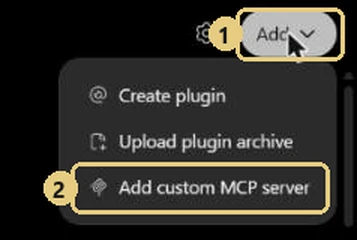 Don't see that option? Your ChatGPT plan or work account may not allow custom servers.
 - In the form:
3 type any Name (like Forever Nexus),
4 click the server URL box and paste (Ctrl+V, or long-press → Paste on a phone),
5 change Authentication from OAuth to No authentication,
6 tick I understand and want to continue,
7 click Create as a plugin.
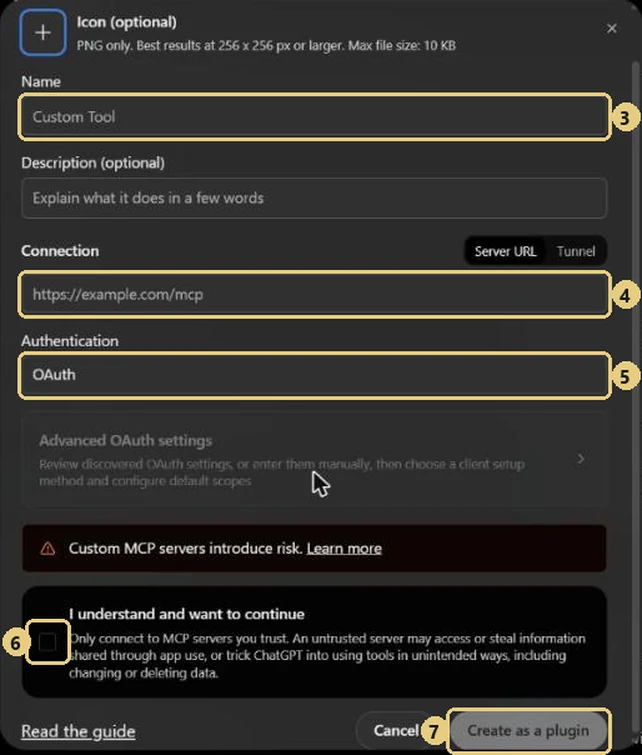 The tools only read the Nexus. If ChatGPT asks for permission when it first uses them, allow it.
 - Start a new chat and just ask, for example:
What drops in Shadowfang Keep for a rogue?If ChatGPT doesn't use it, pick the plugin from the + menu in the chat.
Paste came up empty? Copy the address here:
ChatGPT runs OpenAI's models. The Nexus tells it to stick to Forever data, but it may follow that less strictly than Claude, so check anything surprising against the linked note.
Make it automatic (optional)
Settings → Personalization → Custom instructions, paste this:
For every World of Warcraft question, search the Forever Nexus connector first and answer from what it returns, citing the notes. WoW Forever changed a lot from Classic, so don't rely on general WoW knowledge.
If a chat still doesn't use it, pick the plugin from the + menu; the instruction makes ChatGPT reach for the Nexus once it's there.
Other apps
Anything that supports remote MCP connectors can use the same address. For example, Claude Code: